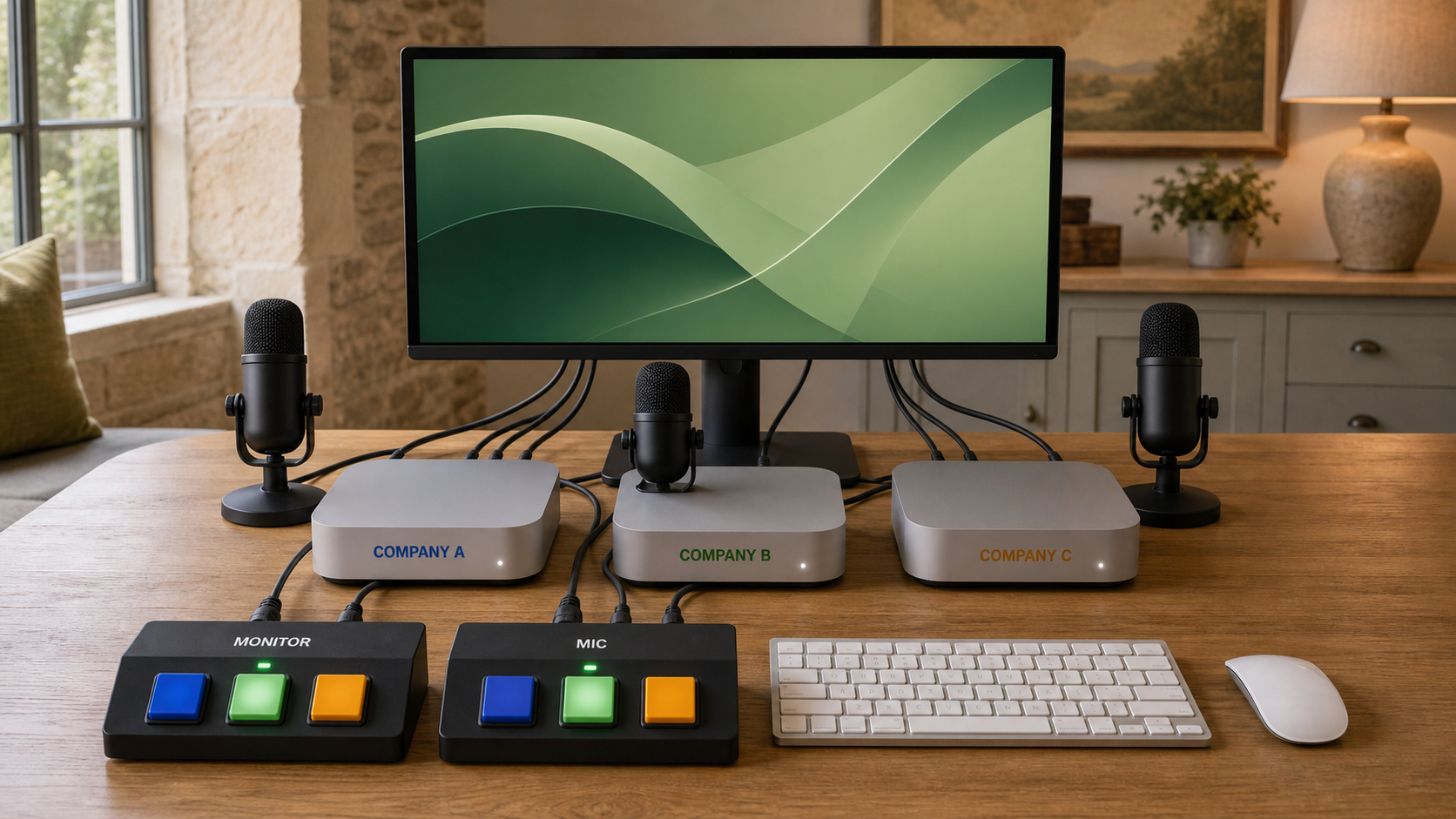
If you work across several companies, the safest useful setup is wonderfully unfashionable:
Use one clearly labelled physical machine for each company.
Log that machine into only that company's Codex or Claude account, email, storage, GitHub and other work services.
Then, when you sit down or speak, you know which company's information, priorities and authority are in the room.
All of the dedicated machines stay powered on. Their Codex or Claude work can continue independently. You do not switch a company machine off or switch its working environment over. You change only the shared voice-input focus by muting every microphone path except the labelled company machine you want to address.
This is not the cheapest arrangement. It is easy to understand, easy to teach and much harder to muddle accidentally.
Who this is for
This guide is for managers, founders, consultants and organisational leaders who work with information for more than one company.
You do not need to be technical. You do need to know which company owns the work and who is allowed to see it.
The information owner must approve the setup. This guide is practical training, not legal advice.
Before you start
You need:
- a list of the companies you work with;
- one approved machine for each company where practical;
- the correct work accounts for that company;
- a visible label for each machine;
- a matching company label for each microphone-control button or path;
- a way to mute each microphone path independently;
- and harmless sample work for your first test.
Do not move real confidential files during the exercise.
What you will learn
By the end, you should be able to:
- give each company one obvious physical working space;
- sign each machine into only the right company accounts;
- make the company and the voice-input target visible before you begin;
- change only the microphone focus while every machine keeps running;
- tell Codex or Claude which company and project it is serving;
- stop before work crosses into another company;
- move the shared voice focus without interrupting independent work.
The simple setup
Company A machine and agent stay running. Then Company A work continues. Then Company B machine and agent stay running. Then Company B work continues. Then You. Then Labelled microphone controls. Then Unmute Company A voice path. Then Or unmute Company B voice path
The editable source for this diagram is Mermaid plain text. See why that works for people and agents.
Clearly labelled machines and microphone controls
Each machine and its matching microphone-control button or path should show the same company or machine name. You should be able to see which voice session will hear you before you speak.
Each machine should have:
- the company name on a physical label;
- a different wallpaper or desktop colour;
- only that company's work accounts;
- only that company's approved files;
- its own password and protected sign-in;
- protected sign-in and screen privacy that do not interrupt approved background work;
- a matching labelled microphone-control button or path;
- and a clear microphone mute state.
The label helps your eyes. The account separation protects the work. The microphone label controls only which session can hear you. Work on every machine continues independently.
Step 1: Name each company room
Create a short card for each company:
Company:
Machine label:
Codex or Claude account:
Email account:
Storage account:
Work repositories or folders:
Person who approves access:
Do not share one personal AI account across several companies merely because it is convenient. Conversation history, connected tools and account permissions can carry context further than you expect.
Step 2: Label the physical machine and its microphone control
Put the company name where you can see it before opening the lid or touching the keyboard.
Use a distinct wallpaper as a second cue. Add the company name to the machine's visible name if your organisation permits it.
Put the same name beside the microphone-control button or path. A label such as North voice or Company A microphone is better than Mic 1.
A small label can prevent a very large apology.
Step 3: Sign in only to that company's accounts
On the company machine, sign in only to the approved work services for that company. These may include:
- Codex or Claude;
- work email;
- Google Drive, OneDrive or SharePoint;
- GitHub or another project store;
- calendar and messaging;
- and the company's password manager.
Ask the company which accounts and recovery methods it requires. Do not invent your own shared login.
Step 4: Start every task by naming the room
Say or type:
Ask the tool to repeat the company, account, project and task in ordinary language. Stop if anything is wrong.
Step 5: Use one microphone path at a time
If several machines are on your desk:
- label every machine;
- label its matching microphone-control button or path;
- leave every machine and its approved work running;
- mute every microphone path;
- unmute only the labelled path for the company machine you are addressing;
- say the company and project name first;
- check the visible listening indicator;
- speak one harmless test sentence;
- confirm it appeared only on the intended machine;
- mute that path when you finish speaking.
Do not rely on remembering which window was active. Use the physical label, mute state and spoken company name together.
Step 6: Move the voice focus without stopping the work
When you want to speak to another company session:
- mute the currently labelled microphone path;
- leave that company machine and its approved tasks running;
- check that every microphone path is muted;
- unmute the labelled path for the next company machine;
- say the company, account, project and task;
- check that only the intended session heard you.
The runtime state stays with each company machine. Only the shared voice-input focus changes.
When separate machines are not practical
Separate computer users or separate browser profiles are a compromise. They may reduce account mix-ups, but they do not create the same obvious physical room.
Use that compromise only with the information owner's approval. Keep separate accounts, visible labels and one deliberately selected microphone path. Do not treat a different tab colour as a complete company boundary.
Hands-on exercise: two imaginary companies
Use sample information for imaginary companies called North and South.
- Label one machine
Northand anotherSouth. - Give each a different wallpaper.
- Open only harmless sample folders.
- Mute both microphones.
- Confirm both machines and their sample tasks remain running.
- Unmute the labelled
North voicepath and say:North, sample project, review only. - Confirm
Southreceived no voice input while its work continued. - Mute
North voice, unmuteSouth voiceand repeat the test while both machines continue their independent work.
The exercise is complete when another person can tell which company will hear you before you speak, and the other running machine receives no voice text.
Verification checklist
- [ ] Every company has one clearly labelled machine where practical.
- [ ] Every microphone-control button or path has the matching company or machine label.
- [ ] Each machine uses only that company's approved accounts.
- [ ] The wallpaper and physical label show the same company.
- [ ] The agent repeats the correct company, account, project and task.
- [ ] Only one microphone is unmuted.
- [ ] Every company machine and approved runtime remains running independently.
- [ ] The other running machine received no voice text.
- [ ] Changing voice focus changed only the labelled microphone path.
- [ ] No real confidential information was used in the test.
- [ ] Any shared-machine compromise has owner approval.
Common mistakes and safe recovery
| Mistake | Why it matters | Safe recovery |
|---|---|---|
| One AI account is used for every company | History and connected context can mix | Stop, sign out and move each company to its approved account |
| The machines or microphone controls look identical | You speak or work in the wrong room | Add matching company labels to the machine and its voice control before continuing |
| Several microphones remain active | One company may receive another company's speech | Mute every microphone path and retest one labelled path at a time |
| A company file lands on the wrong machine | Ownership and confidentiality cross the boundary | Stop, preserve the evidence and notify the relevant owner before moving or deleting it |
If information crosses the boundary, do not hide the mistake. Mute every microphone path, preserve the record and tell the people responsible for the data.
Ready-to-copy prompt for each machine
Do this now
- Put the company name on the machine and its matching microphone control.
- Check the signed-in AI, email and storage accounts.
- Mute every other microphone.
- Paste the ready-to-copy prompt.
- Run one harmless review-only task.
Your next step
Repeat the harmless microphone test after sleep, restart and any major app update. A boundary that worked last month still deserves a quick check today.
Continue with: